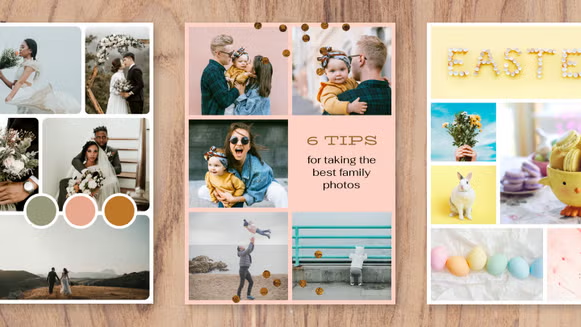

Whether you are pulling together vacation snapshots, assembling a tribute for a graduation, or creating visual content for a brand, the right collage platform makes the difference between a forgettable grid of images and something worth sharing. This article is for anyone who wants to create a personalized photo collage online without learning professional design software, and who needs to share the result quickly and confidently. By the end, you will know exactly what to look for in a platform and which options deserve your time.
What Makes a Photo Collage Platform Worth Using
Not every online collage tool is created equal. Some are built purely for speed and produce rigid, cookie-cutter layouts. Others offer so many options that first-time users abandon them before finishing a single project. The best platforms sit in the middle: they give you meaningful creative control while keeping the process simple enough to complete in under 30 minutes.
Before comparing any tools, it helps to define what you actually need. Are you making something for print or digital sharing? Do you want to add text and branding, or just arrange photos cleanly? Will you share directly to social media, or export a file to send in a message? Answering these questions first will sharpen your evaluation significantly.
The sections below walk through the criteria that separate genuinely useful platforms from the ones that look good in screenshots but frustrate you in practice.
Ease of Use for Non-Designers
The first thing to evaluate is whether a platform assumes design knowledge. Some tools use terminology like bleed zones, resolution settings, and vector masks without explanation. If you are not a designer, that kind of interface creates unnecessary friction and slows you down considerably.
A well-designed platform for general users will let you drag images into a pre-built layout and adjust from there. Look for tools that show a visible grid or frame system so you always know where your photos will land. You should also be able to swap images between frames without starting over, and resize or crop individual photos within the collage without affecting the rest of the layout.
The best beginner-friendly platforms use a what-you-see-is-what-you-get editor, meaning the design you see on screen matches what you download or share. If you have to guess whether your changes will be reflected in the final output, that is a sign the platform needs more polish before it earns a spot in your regular toolkit.
Template Library Depth and Variety
Templates are the fastest entry point into any collage project. A strong template library should include layouts for different photo counts, aspect ratios suited to specific platforms (square for Instagram, vertical for Stories, horizontal for desktop wallpapers), and thematic options that match common occasions like birthdays, travel, and professional portfolios.
More importantly, templates should be genuinely customizable. A template is only as valuable as the flexibility it offers after you select it. If you cannot change the color scheme, font, layout structure, or spacing without the whole design falling apart, the template is doing too much of the work for you and too little of what you actually want.
One sign of a high-quality template library is how well templates hold up when your photos do not match the expected dimensions. A good template adapts gracefully rather than stretching or distorting your images in ways you did not ask for. Browsing a platform’s template gallery before creating an account is a quick way to assess quality and range before committing your time.
Personalization Features: Beyond Swapping Photos
Personalization is what separates a photo collage from a basic photo grid. The tools that stand out in this category allow you to add custom text in a range of fonts and sizes, overlay graphics or icons, use background colors or patterns, and apply filters or adjustments to individual images within the collage.
Some platforms go further by offering branded templates where you can upload a logo or set a consistent color palette, which is useful for small business owners or content creators who want visual consistency across their posts. This kind of brand-level control is usually part of a paid tier, but it is worth knowing whether a platform offers it at all before you invest time learning the interface.
Look for platforms that let you control the spacing between images, since border width is one of the simplest ways to completely change the mood of a collage. Thin white borders feel modern and editorial; thick colored borders feel more playful or retro. This level of control should be available without requiring a premium subscription on any platform that takes personalization seriously.
Adobe Express: A Strong Option for Personalized, Shareable Collages
One platform worth seriously considering is Adobe Express, which offers a dedicated collage-making tool at no cost. You can make a collage directly in the browser, without downloading any software, and without needing any prior design experience.
Three features make it a particularly strong choice. First, the template library is extensive and genuinely varied, covering everything from clean grid layouts for travel photos to layered, text-heavy designs suited for event invitations. Second, Adobe Express integrates directly with Adobe Stock, meaning you can supplement your personal photos with royalty-free imagery without leaving the platform. Third, the animation feature allows you to add movement to photos or text elements and export the finished collage as an MP4, which is a real advantage if your goal is to share on social media where video content typically gets more engagement than static images.
The free plan is generous enough to complete most personal and small-scale professional projects. It includes thousands of templates, photo editing tools, filters, and 2GB of storage. The editor is clean and approachable, with image cropping, rotation, background removal, and text formatting all accessible from within the same workspace. For anyone who already uses Adobe products, it also integrates neatly into that broader ecosystem.
Sharing and Export Options
A collage is only as useful as your ability to actually share it. Evaluate any platform based on the formats it exports and where those files can go. At minimum, look for JPG and PNG downloads in resolutions high enough for print if needed.
Beyond file downloads, look for platforms that offer direct sharing to social media channels, shareable links, or options to publish directly to a content calendar. Some tools support direct posting to Instagram, Facebook, or Pinterest, which eliminates the step of downloading and re-uploading your finished design.
If you plan to print your collage, look for tools that offer PDF export at 300 DPI or higher. A collage that looks sharp on screen can appear blurry when printed if it was only optimized for web resolution. Many free-tier accounts limit export quality specifically to push users toward paid plans, so this is one of the first things to test before relying on a platform for print-ready work.
Collaboration and Multi-User Access
If you are making a collage with input from others, such as for a group gift, a team event, or a family project, check whether the platform supports collaboration. Some tools allow you to share an editable link so others can add photos or make changes in real time. Others let you send a view-only link so the recipient can see the finished design before you download it.
This feature matters more than most people anticipate. The ability to gather photo contributions from multiple people, incorporate them into a single design, and share a preview for approval before finalizing everything can save hours of back-and-forth communication. If collaboration is part of your workflow, prioritize platforms that build it into the sharing process naturally rather than requiring manual exports and re-uploads at every step.
Pricing and Free Plan Limitations
Almost every major collage platform has a free tier, but those tiers vary widely in what they actually include. Common restrictions include watermarks on downloaded images, limited template access, caps on how many projects you can save, and lower export resolution on free accounts.
Before committing to a platform, try to download a finished collage on the free plan and verify whether a watermark appears. Also check whether the templates you want to use are locked behind a paywall. Some platforms advertise thousands of templates but only make a small fraction available without a paid subscription, which makes their free offering misleading at first glance.
A reasonable way to evaluate value is to ask whether the free plan produces something you would actually share without hesitation. If the answer is no because of watermarks, limited layouts, or reduced image quality, then factor the subscription cost into your comparison from the start rather than discovering the limitations after you have already spent time building your design.
Frequently Asked Questions
What is the easiest type of collage platform to use if I have no design experience?
For complete beginners, the most approachable platforms are browser-based tools that require no installation and start with a template selection. The key is finding one that defaults to a drag-and-drop interface rather than a blank canvas. If you land on a platform and the first thing you see is an empty white rectangle with no guidance, look for a template gallery instead. Starting from a pre-built layout removes the hardest part of design, which is deciding on structure, and lets you focus entirely on adding your photos and making small adjustments. Most people with no design background can produce a polished, shareable collage in under 20 minutes using a template-first approach.
How do I choose the right layout for the platform or channel I am sharing to?
The destination of your collage should drive your layout decision before anything else. Square formats work best for Instagram feed posts and most messaging apps. Vertical formats (9:16 ratio) are standard for Instagram Stories, TikTok, and Pinterest. Horizontal or landscape layouts suit Facebook covers, desktop wallpapers, and email newsletters. Most good platforms let you set the canvas size before you start, and some will even suggest a size based on where you plan to share. If you are unsure, square is the most universally compatible format across platforms, since it can be cropped or padded for other uses without losing much of the design. Choosing the wrong dimensions at the start is one of the most common mistakes, and it often means rebuilding the layout from scratch.
Can I use free stock photos in my collage, or do I need to use my own images?
Many collage platforms offer access to free or licensed stock photo libraries built directly into the editor, which means you do not need to bring all your own images. This is useful when you are building a collage for a topic or theme rather than documenting a personal event. However, it is worth checking whether the stock images available in the free tier are actually royalty-free for commercial use or only for personal projects. If you need supplemental images independent of a specific platform, Unsplash is a well-regarded source of high-resolution photos that are free to use for both personal and commercial purposes without attribution required.
What should I look for if I want to print my collage rather than just share it digitally?
Print requires significantly higher image resolution than digital sharing. A collage that looks sharp on a phone screen may print blurry or pixelated if the underlying file resolution is too low. For print, aim for a minimum of 300 DPI at the intended print size. Before choosing a platform for print use, check whether it allows you to export at print-quality resolution on the free plan, since many tools restrict this to paid tiers. Also consider whether the platform offers direct printing options or integrates with a print service, which can simplify the process considerably. Finally, use the highest-resolution versions of your original photos, since upscaling a small image within a collage editor rarely produces good print results.
How do I share a photo collage with people who do not use the same platform I created it on?
The most universal sharing method is downloading your finished collage as a JPG or PNG file and sending it directly via message, email, or social media post. This approach works regardless of whether the recipient uses any particular app or platform. For situations where you want someone to view the collage in higher quality before printing, a PDF export is a better option. Some platforms also generate a shareable web link that lets anyone view the collage in a browser without needing an account, which is convenient for group sharing or approval workflows. If you regularly share collages across different contexts, look for a platform that supports multiple export formats from the same project so you do not have to recreate the design in different sizes or file types.
Conclusion
Choosing the right online photo collage platform comes down to matching the tool’s strengths to your specific situation. If you want a fast, template-driven experience with strong personalization options and easy social sharing, browser-based tools with large template libraries and built-in editing features are the place to start. Pay close attention to what the free plan actually delivers in terms of export quality, watermarks, and template access, since those details will determine whether the platform works for you before you ever consider upgrading.
The good news is that the current generation of online collage tools is genuinely capable. With the right evaluation criteria in mind, you can find a platform that fits your workflow, produces results you are proud to share, and does not require any design background to use confidently. Start with one or two platforms, run a test project on each, and let the experience tell you which one earns a permanent place in how you work.