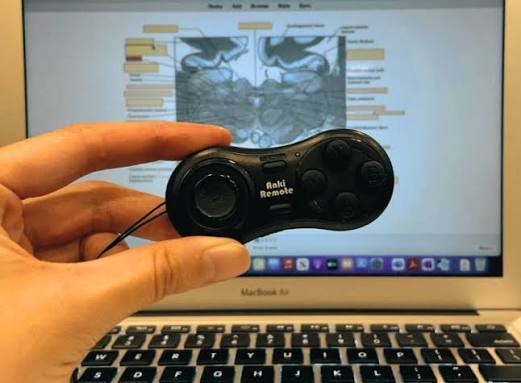

To set up a MODI Anki remote with a MacBook, pair it through macOS Bluetooth in Keyboard Mode. Open Bluetooth settings, hold A + Home on MODI for one second, select the MODI connection when it appears, and confirm that the center LED turns solid green. After that, desktop Anki can receive MODI’s preset keyboard inputs without the optional MODI add-on. MODI is an independent Bluetooth accessory, not an official Anki product or certified Apple device.
This MacBook setup is the right starting point when you want standard review controls instead of custom button mapping. Keyboard Mode sends preset inputs that desktop Anki can use during review, including answer buttons, undo, suspend, escape, spacebar, and direction-key navigation. Readers can review the documented compatibility and setup details for Anki remote for Mac before deciding which mode fits their device.
Mac Bluetooth
Start with the MacBook’s Bluetooth settings before changing anything inside Anki. Turn Bluetooth on, then remove any saved MODI or Anki remote entries if the remote was previously paired to this MacBook, another computer, a phone, or a tablet. Old saved profiles can make a controller appear connected while the active mode does not match the workflow you are trying to use.
After old entries are removed, wake MODI and begin Keyboard Mode pairing by holding A + Home for one second. Select the MODI connection in the Bluetooth list. The documented success signal for Keyboard Mode is a solid green center LED. If macOS shows the remote as connected but Anki does not respond, confirm the green LED first, then test from an Anki review screen where keyboard actions are available.
Keyboard Mode
Keyboard Mode is the standard MacBook setup because it behaves like a preset keyboard controller. Desktop Anki does not need the MODI add-on for this default workflow. Anki itself supports common keyboard controls such as Space or Enter to reveal an answer or choose Good, and number keys 1-4 for answer buttons when those buttons are available. MODI’s preset inputs work with that keyboard-control behavior rather than replacing Anki’s own study screen.
The recommended MODI orientation is vertical with the D-pad facing down. In Keyboard Mode, the main review controls include Again, Hard, Good or Next, Easy, Undo, Suspend, Escape, Spacebar, and direction-key navigation. These are input options, not promises about study results or review speed. If one Anki screen does not react to a button, check whether that screen accepts the same keyboard command before assuming the Bluetooth pairing failed.
Home Reconnection
After the first successful pairing, use Home as the practical reconnection control. Press Home to wake MODI and reconnect in the last-used mode. On a MacBook that was last paired in Keyboard Mode, the remote should reconnect in Keyboard Mode instead of requiring a new setup sequence. You usually only need to return to Bluetooth settings when the saved pairing has been removed, changed, or stopped behaving correctly.
MODI also manages sleep automatically. The remote sleeps after about 2.5 minutes without a Bluetooth connection or after 5 minutes of inactivity. To manually put it to sleep or turn it off, hold Home for 3 seconds. If pressing Home does not reconnect the remote, check whether the MacBook still has the prior MODI Bluetooth entry, whether the remote has charge, and whether another nearby device may still be using the saved pairing.
Plugin Mapping
Custom button mapping on a MacBook uses a different path from the default Keyboard Mode workflow. The optional MODI desktop add-on is installed inside desktop Anki with code 406900239. In Anki, go to Tools -> Add-ons -> Get Add-ons, enter the code, restart Anki, then open MODI Anki Remote from the menu to configure buttons.
The add-on is optional; it extends desktop Anki and is not required for the preset Keyboard Mode controls. Treat it as a customization layer when the default layout does not match the way you want to assign review actions. Because Anki add-ons depend on desktop Anki’s extension system, an add-on may require an update after Anki changes. If the add-on menu is missing, restart Anki first and confirm that the code was entered through the add-ons screen.
Switch Mode
Switch Mode is the MacBook option to consider when you want custom remapping through the MODI add-on instead of preset Keyboard Mode behavior. To enter Switch Mode, open Bluetooth settings, hold Y + Home for one second, and select the MODI connection. A successful Switch Mode connection is shown by a solid blue center LED. This mode exposes gamepad-style inputs, which is also why it is the standard MODI setup path for AnkiMobile and AnkiDroid.
Do not switch modes by pressing a different button combination over an old saved pairing. When changing from Keyboard Mode to Switch Mode, forget every saved MODI or Anki remote entry in macOS Bluetooth settings, then repeat the full connection steps for Switch Mode. Use the same forget-and-repair process when returning to Keyboard Mode later. The LED color is the quickest documented clue for which mode is active: green for Keyboard Mode and blue for Switch Mode.
Troubleshooting
If MODI pairs with the MacBook but does not control desktop Anki, work from the connection outward. Check the center LED color, confirm that you are on an Anki review screen that accepts keyboard actions, and then remove saved Bluetooth entries before pairing again in the intended mode. If the remote remains connected but unresponsive after a fresh pairing, restart the MacBook and try the complete pairing sequence again.
Battery and lighting can also affect setup checks. A quickly flashing red LED means low battery; a flashing green LED means charging; and the charging LED turns off when charging is complete. Decorative lighting is controlled separately by double-clicking the Light button. Keeping decorative LEDs off when they are not needed helps preserve practical battery life, but do not infer a battery percentage from LED behavior beyond the documented signals.